Browsing archives (the picker)
The API started by pnpm run api serves one screen at /. It lists the pages you have captured and
opens the one you pick in replay, the viewer that plays an
archive back. These docs call it the picker. Picking is all it does: it captures nothing, and it has
no button that starts a crawl.
Each captured page is stored as one WACZ (Web Archive Collection Zipped) file. A row in the picker is one of those files.
http://127.0.0.1:7070/The screen is in Japanese. Its labels are quoted below as they appear, with their meaning beside them.
The screen follows how the API identifies callers
Section titled “The screen follows how the API identifies callers”At startup the API settles on one way for callers to say who they are — a JWT (JSON Web Token — a signed proof of identity), the development headers, or nothing at all. The picker changes its fields to match.
The API’s .env |
Identity | Fields in the picker |
|---|---|---|
CAPTURE_LEDGER_OIDC_ISSUER is set |
JWT | One token |
Only CAPTURE_LEDGER_DEV_IDENTITY=1 |
Dev headers | Two: subject and organizations |
| Neither | None configured | No fields — only a notice |
With both set it is JWT. The API never accepts both at once, so a setup with both cannot fall to
the weaker one. If you are following the Quickstart, it is the dev
headers at §6 and JWT once you paste the four lines in §7. The last line of the API’s startup log
says which one is in effect (identity: …) — see
Check the startup log.
Three steps (dev headers)
Section titled “Three steps (dev headers)”- Say who you are in the two fields.
subjectis your own name andorganizationsis the organization you belong to. If you are following the Quickstart, type the output ofwhoamiandacme(the organization you claim when starting the crawl in §7). - Press 読み込む (Load). The Enter key does not load. Press the button again whenever you change a field.
- Click the row you want. replay opens in a new tab — see After clicking a row.
Three steps (JWT)
Section titled “Three steps (JWT)”-
Get a token. In the capture-ledger directory, run the line below. The development issuer (
pnpm run oidc:issuer) mints a token valid for one hour and it lands on your clipboard. The same command is shown inside the box on the screen.Terminal window pnpm run --silent oidc:token --subject "$(whoami)" --org acme | pbcopy -
Paste it into the トークン (Token) field and press 読み込む (Load).
-
Click the row you want.
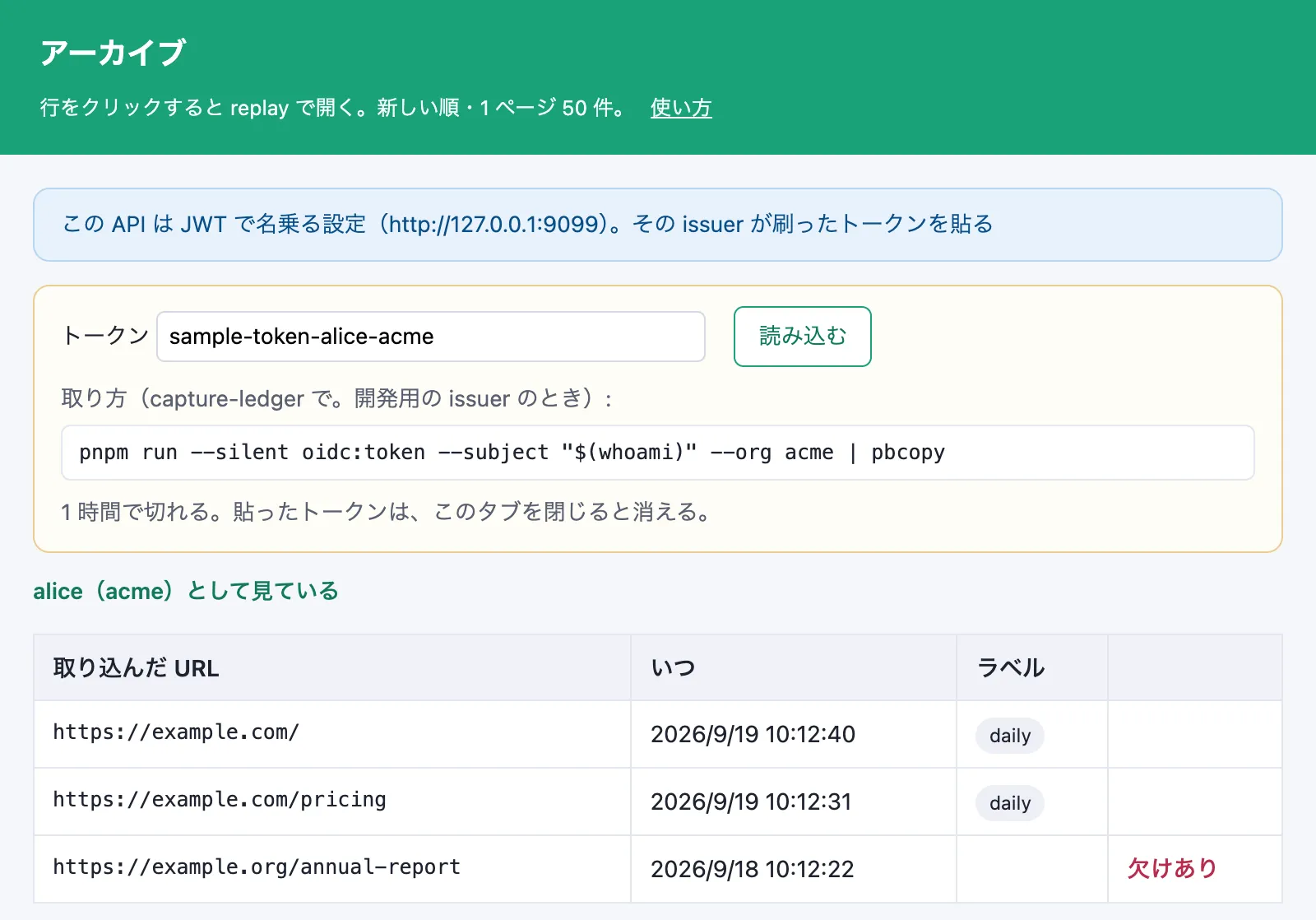
Once loaded, the line above the list says 名前(組織)として見ている (“viewing as name
(organization)”). That is the API’s verdict on the token (GET /api/me); the browser never reads
what is inside the token. The --subject and --org you mint the token with play the part of the
two fields under the dev headers — see What your identity lets you see.
In a deployment with a real IdP (Identity Provider — the outside service that vouches for who you
are), paste the access token that IdP issued.
What is on the screen
Section titled “What is on the screen”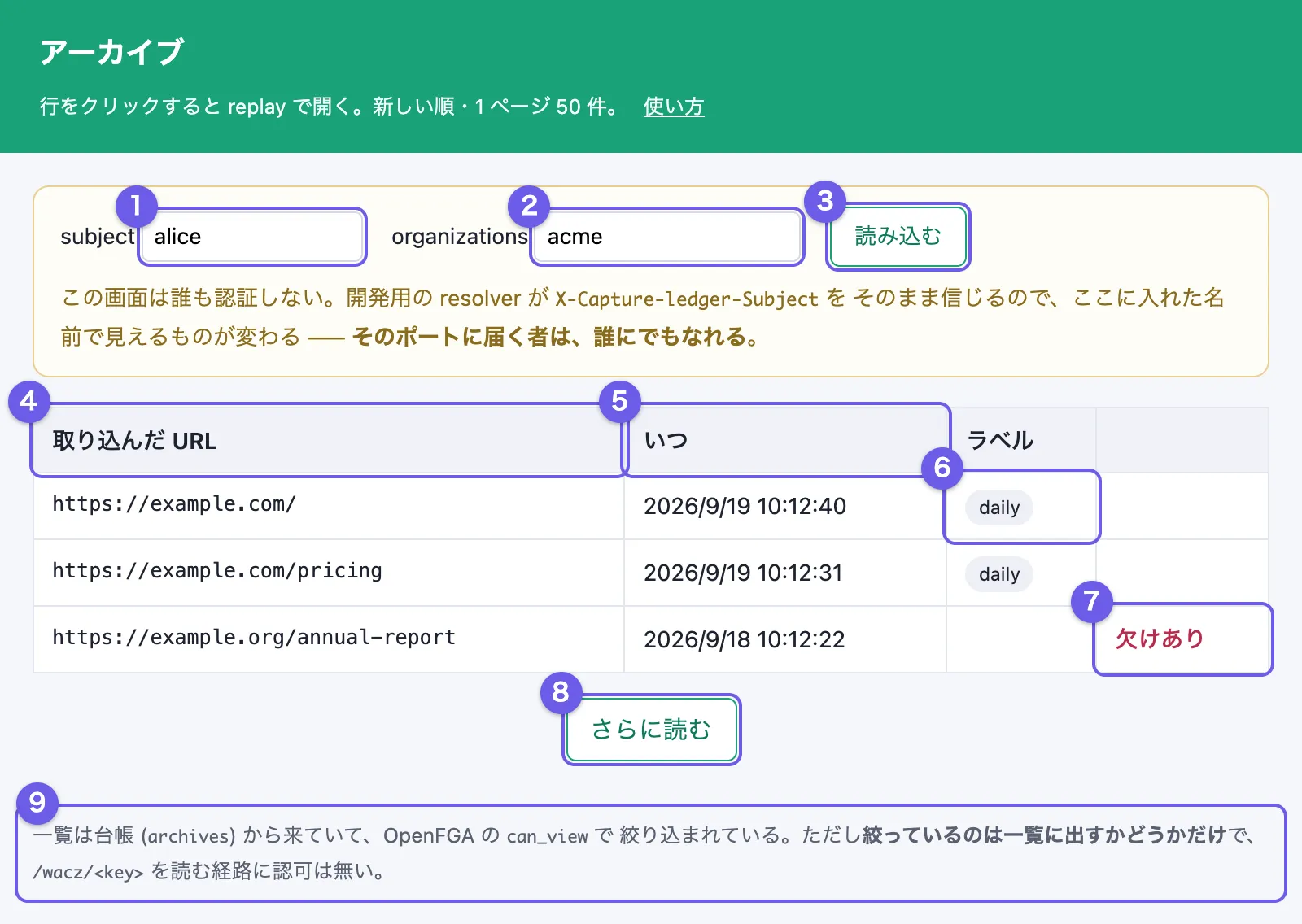
The picture was taken under the dev headers with sample data (subject is alice,
organizations is acme). Under a JWT setup, one token field takes the place of 1 and 2. The
numbers match the rows of the table below. Every picture on this page is generated by pnpm run docs:shots;
none was taken by hand — see
Retaking the screenshots.
The 使い方 (How to use) link in the green header opens the Japanese version of this page.
| No. | Part | What it does |
|---|---|---|
| 1 | subject |
Who you are viewing as. Type your own name. Loading with this empty gives 401. The grey alice is only an example |
| 2 | organizations |
The organizations you belong to, comma-separated (the grey acme,beta is an example). It may stay empty, but then you see only what your own crawls produced |
| 3 | 読み込む (Load) | Fetches the list again under the identity currently typed in |
| 4 | 取り込んだ URL (Captured URL) | The URL of the captured page. One row is one capture, so a page captured three times is three rows — tell them apart by the time |
| 5 | いつ (When) | When the page was captured, shown in your browser’s time zone. The API and the database hold UTC |
| 6 | ラベル (Labels) | The labels that were put on the capture target (capture_targets) |
| 7 | 欠けあり (Incomplete) | Shown in red in the fourth column when at least one response body could not be stored — see When wacz_complete is false. It is shown here so you know before you open it |
| 8 | さらに読む (Load more) | Appends the next 50 rows. It appears once even when there is nothing more; if pressing it adds nothing, you have reached the end |
| 9 | The note at the bottom | A reminder that the identity filters only what the list shows — see Archive ledger |
Rows are newest first, 50 to a page. There is no search or filter field; your browser’s find-in-page works on the list.
What your identity lets you see
Section titled “What your identity lets you see”Your identity is a claim about who you are. It is not a password, and it is not a search term.
Under the dev headers, whatever you type into the two fields is sent as two request headers,
X-Capture-ledger-Subject and X-Capture-ledger-Organizations. Under a JWT setup, the picker sends
the pasted token as Authorization: Bearer, and the name and organizations inside it are the claim —
the same shape as the curl that starts a crawl.
What you claim decides which rows you see. An archive is visible when either of these holds:
| Condition | Meaning |
|---|---|
| You started the crawl | The subject that started the crawl is the subject you typed |
| You are in the same organization | A crawl belongs to the first organization its starter claimed. You see it when organizations names that same organization |
The Quickstart’s §7, for example, starts its crawl as the output of whoami, in acme. What it
produces is visible to that same name, or to anyone claiming membership of acme. Any other name on
its own gives 見えるアーカイブが無い.
The decision is OpenFGA’s can_view. The whole model is in
The authorization model.
What the messages mean
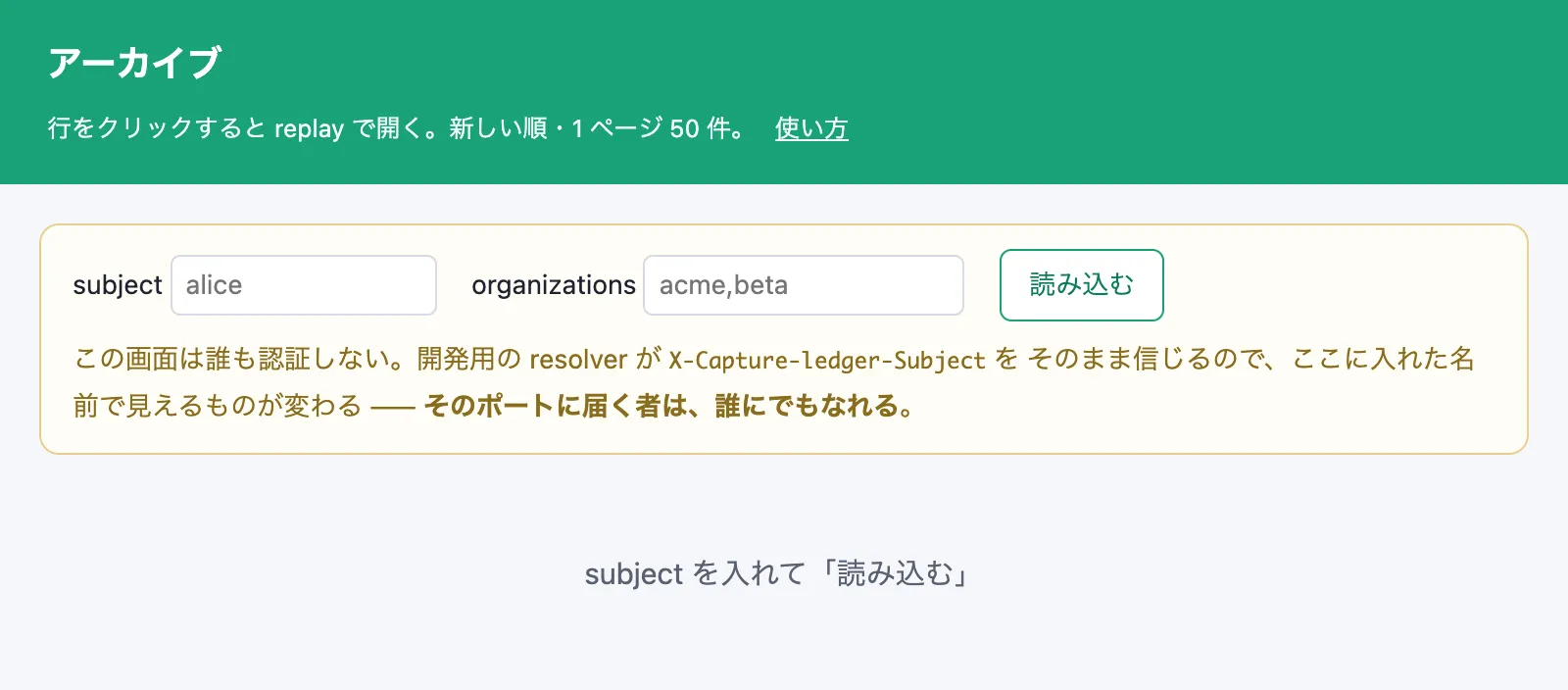
Section titled “What the messages mean”Just after opening, before anything has been asked for, the screen looks like this (dev headers):
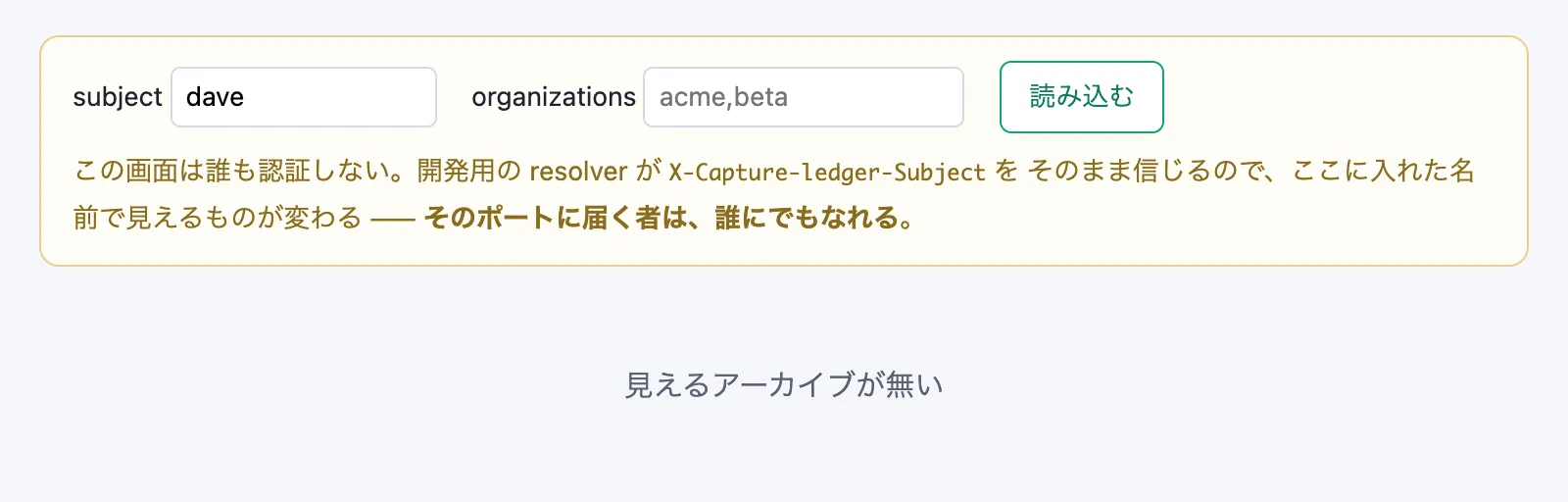
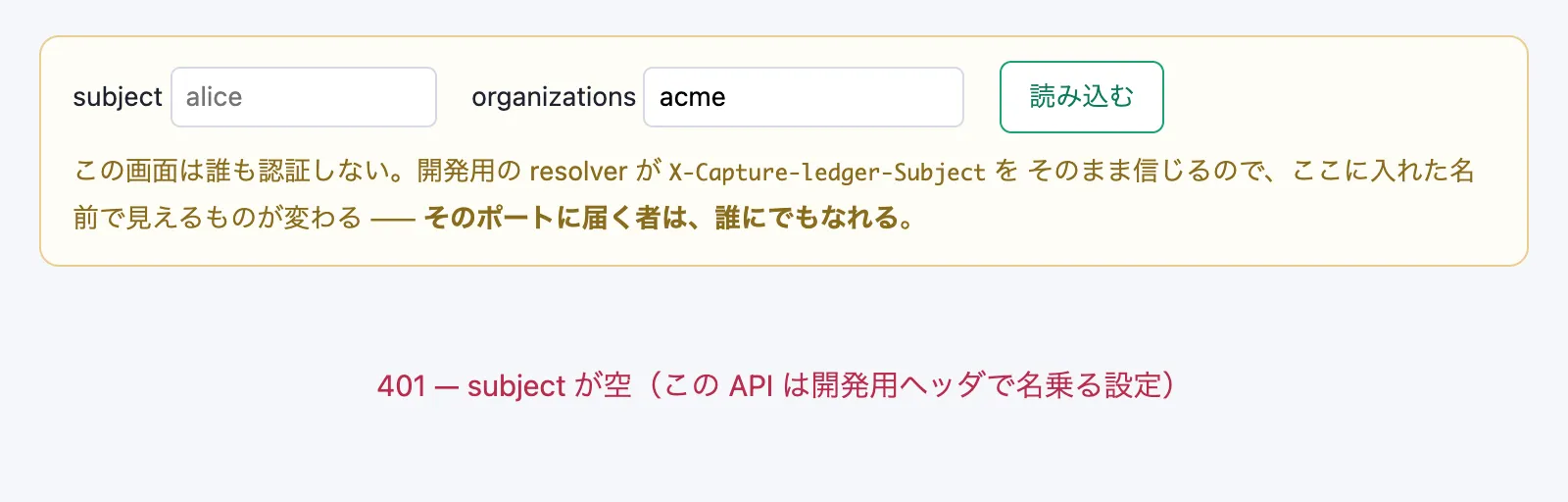
Loading under an identity that can see nothing (top), and loading with subject left empty (bottom):
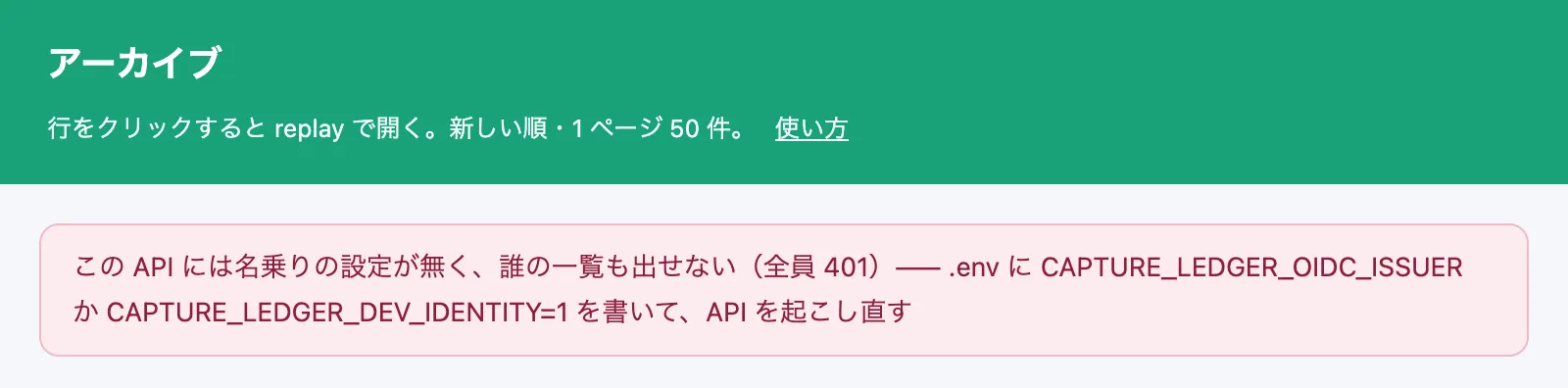
An API with no identity configured shows only a notice — no fields and no 読み込む, since pressing
it could only ever give 401:
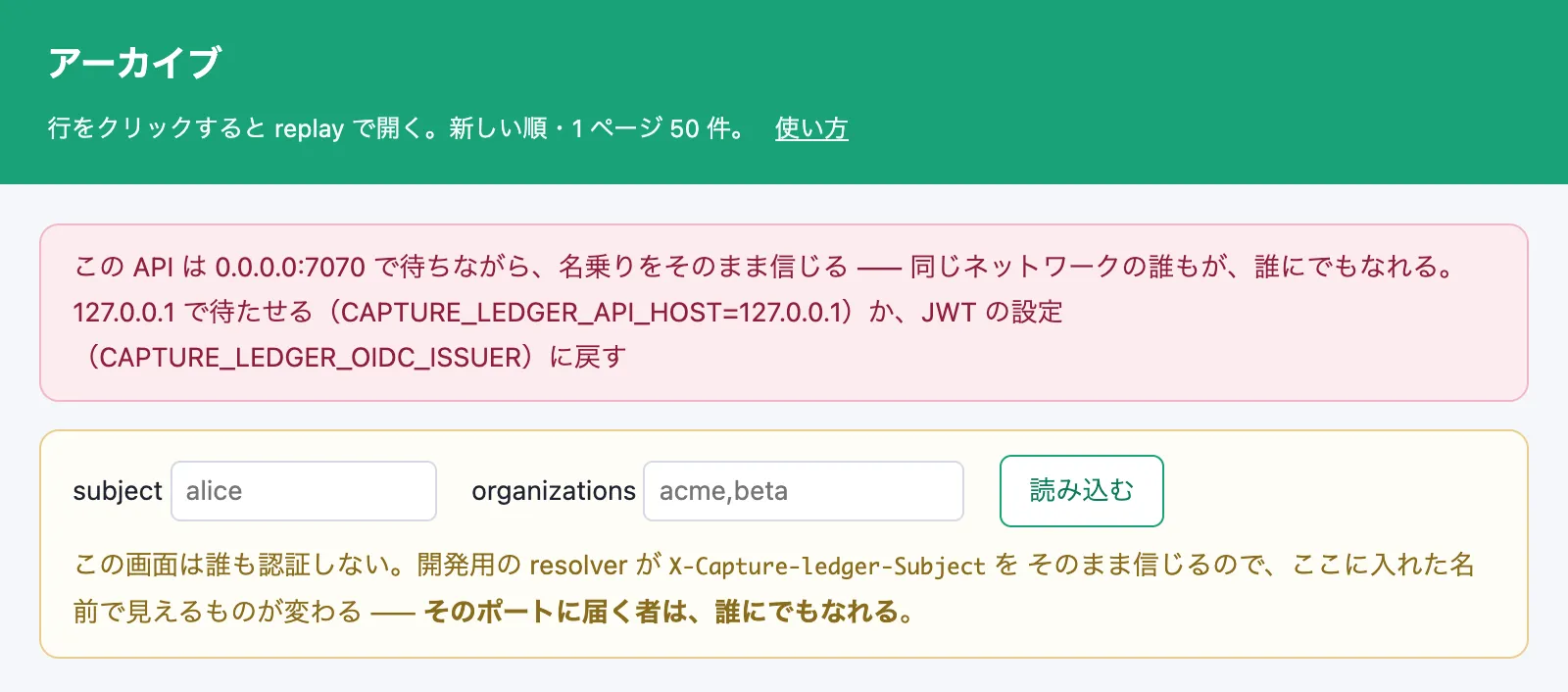
An API under the dev headers that listens on 0.0.0.0 shows a red notice at the top:
| Message | Identity | Meaning | What to do |
|---|---|---|---|
| subject を入れて「読み込む」 | Dev headers | The page has just opened and has not asked for the list yet | Fill in the two fields and press 読み込む |
| トークンを貼って「読み込む」 | JWT | The page has just opened, or the token field is empty | Get a token, paste it and press 読み込む |
| 見えるアーカイブが無い | Either | The API answered normally, with no rows visible under this identity | Go through “When the list is empty” below |
| 401 — subject が空(この API は開発用ヘッダで名乗る設定) | Dev headers | subject was left empty |
Type a subject |
| 401 — このトークンは通らない(期限切れ・issuer を起こし直した後・別の issuer のもの)。取り直して貼る | JWT | The API refused the token (expired, minted before the issuer restarted, or from another issuer) | Get a new token and paste it. If the issuer is down, start it with pnpm run oidc:issuer first. The check that failed (exp, for example) is in the API’s log, on the JWT rejected line |
| この API には名乗りの設定が無く、誰の一覧も出せない(全員 401) | None | .env configures no identity |
Put CAPTURE_LEDGER_OIDC_ISSUER or CAPTURE_LEDGER_DEV_IDENTITY=1 in .env and restart the API |
| この API は 0.0.0.0:7070 で待ちながら、名乗りをそのまま信じる | Dev headers | Anyone on the same network can be anyone | Restart with CAPTURE_LEDGER_API_HOST=127.0.0.1, or go back to the JWT setup |
| A number such as 500 — 一覧を取れなかった | Either | The API failed inside (it could not reach the database or OpenFGA, for example) | Read the log in the terminal running pnpm run api |
When the list is empty
Section titled “When the list is empty”- Nothing has been captured yet. At §6 of the Quickstart this is the normal state.
- The identity differs from the one that started the crawl. Check the spelling of the
organization. When in doubt, claim the same name and organization that started the crawl (under a
JWT setup, the
--subjectand--orgyou mint the token with). - The crawl is still running. A page enters the ledger once the level it belonged to has been reported — see While it is still running. From there it takes at most about five seconds to become visible: the API delivers authorization data to OpenFGA every five seconds. Wait a moment and press 読み込む again.
After clicking a row
Section titled “After clicking a row”Clicking a row opens replay in a new tab. The URL is built from where replay lives and the key of
that WACZ (objectKey):
http://127.0.0.1:8899/?source=/wacz/<objectKey>replay first shows the list of pages inside that WACZ. One picker row is the capture of one page, so there is normally one entry. Click its title and playback starts. The bar at the top shows the original URL and the capture time; below it is the page as it was captured.
Where replay lives comes from REPLAY_ORIGIN in .env (default http://127.0.0.1:8899). The replay
container is started along with the rest by pnpm run stack:up.
Good to know
Section titled “Good to know”- The browser remembers the two name fields. Next time the page opens it loads under the previous identity on its own. After trying another identity, remember to change it back.
- A token is gone when you close the tab. A token is itself a key, so the picker keeps it only for
the tab (
sessionStorage). Paste it again after reopening — and after it expires in an hour. - The picker mints no tokens. The development issuer does, and it listens only on
127.0.0.1. - Under the dev headers the screen authenticates nobody. It is a development screen. Do not expose it anywhere reachable from outside.
- Only the list is filtered. Anyone who knows the key of a WACZ can read it through replay — see Archive ledger.